Posts

Triggering a software update install via Powershell

Howdy Folks This post is a holiday slice of pie. Today we focus on triggering update(s) that are deployed to a machine. Now for the pie filling. Triggering an update scan on a client: ([wmiclass]'ROOT\ccm:SMS_Client').TriggerSchedule('{00000000-0000-0000-0000-000000000113}') Trigger install of all updates: ([wmiclass]'ROOT\ccm\ClientSDK:CCM_SoftwareUpdatesManager').InstallUpdates() Here is a nice addition if you only want to install specific update(s) you just have to modify the select statement: ([wmiclass]'ROOT\ccm\ClientSDK:CCM_SoftwareUpdatesManager').InstallUpdates([System.Management.ManagementObject[]] (get-wmiobject -query 'SELECT * FROM CCM_SoftwareUpdate' -namespace 'ROOT\ccm\ClientSDK')) If you would like to see if there are updates applying, if true they are running: $CCMUpdate = get-wmiobject -query "SELECT * FROM CCM_SoftwareUpdate" -namespace "ROOT\ccm\ClientSDK" if(@($CCMUpdate | where { ...

Some reports break in SSRS after SQL 2012 to 2014 upgrade

Greetings Follow Professionals We had an interesting one when updated from SQL 2012 to SQL 2014 and SSRS reports. We found that it didn't break all reports just some. Anyways a teammate of mine found the following blog post that ended up addressing and fixing our issue.  I just wanted to share it so that others are aware. https://ronnydejong.com/2013/05/23/reporting-service-point-rsp-broken-after-upgrading-sql-server-2012-sp1-sysctr/ The just of it is updating the path in the rssrvpolicy.config file to point to the new SSRS directory and to copy the srsresources.dll file to the new directory.

Specialized Application Reporting - Part 3

Image
Welcome to Part 3 of this 3 Part Series. In this portion we will discuss actually using the data that you created in 2 of this series. Now there are a few ways you can do this, you can create a SSRS report, or a Excel spreadsheet with datalinks, or create a Power BI report. My teammate opted for the Power BI Report which I have included the report file that you can download. There are a couple of variables in it that will need to be updated so that it connects to the database and data that we created in this series. Here is a download of the Power  BI Report file  in order to open the file you will need Power BI Desktop which is free from Microsoft. Just go to the Edit Queries and add your information. If you use Power BI you can get a nice colorful report looking something like the following: If you don't want to mess with Power BI or you have your own preferred way of creating reports. Here are the queries used in the Power BI file that loads t...

Specialized Application Reporting - Part 2

Welcome to Part 2 of this 3 Part Series. In this portion we will discuss building the data that you need for part 3 of this series. This is where things will get a bit confusing but I will try to make it make sense. A couple of points to remember upfront: All variables used in the WHERE statements are LIKE clauses. Examples shown are setup to handle an application deployment that is using more than one collection. Where you see [ ] fill in with your environment information These steps are designed to be used in a SQL Job and ran on a schedule, however I recommend running manually while you make sure everything is working as it should first. Step #1 - Update the vAppDeploymentResultsPerClient table USE [INSERT DB NAME HERE] DECLARE @AppName varchar(max) DECLARE @CollectionName1 varchar(max) DECLARE @CollectionName2 varchar(max) SET @AppName = '[ApplicationName]' SET @CollectionName1 = '[CollectionName]' SET @CollectionName2 = '[CollectionName]...

Specialized Application Reporting - Part 1

Welcome to Part 1 of this 3 Part Series. In this portion we will discuss the groundwork that will be used in part 2 and 3 of this series. It is recommended to do all this in a database that is not the CM database. Ideally you would have a database just for this (and on a different server, like say a dedicated reporting point). If you use a different server than the one containing your CM database. You will need to setup a Link Server for the queries to get data from the CM database. Now for the why are we doing this? Well this stemmed from one of my teammates getting tired of running the same queries over and over again for a project. Part 2 of this series will focus on the portion that can be turned into jobs that can run on a schedule. Part 3 will focus on giving a nice and pretty report that can be used for your own desires or to show others who like pretty colors. Setting up your tables: Below is the SQL required to setup the tables and view that will be used in part 2 an...

Using Powershell to Assign iOS devices to DEP profile

Image
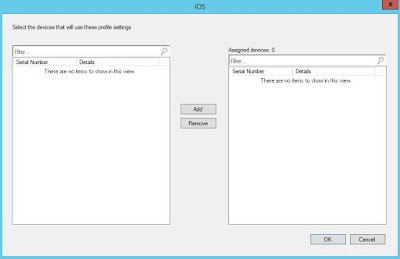
Hello fellow admins! As you can guess from the title, this post is dealing with a SCCM/Intune hybrid environment scenario. If you are in a hybrid environment you have probably noticed that using Apple DEP is a bit different than just using the Portal app on the phone. With that said, if you happen to be lucky enough to be able to delegate the mobile device management to another group. Then you will have probably also noticed that you can't limit security permissions below full admin if you want them to be able to assign devices to DEP. Well have no fear, here is a nifty bit of powershell that you can setup to run on a schedule (hint: think CI). This handy script will lookup mobile devices and then assign them. Basically it does what this dialog does. Now to the nitty gritty. First off I recommend you familiarize yourself with the MSDN technical documentation for the method  UpdateProfileIDForDevices , however what this documentation doesn't tell you is where the heck do...

Computer Monitor Inventory Data Query

Greetings Folks! Today's post is going to talk about computer monitor inventory data. While I have found a good post from a Technet blog to get you started, I've had to modify the query referenced in that blog. As I found their query to be a bit on the broken side. So naturally I fixed it. Also you don't have to go through the whole modifying the mof file to collect the monitor data. There is actually already a WMI class in windows so you just have to go into the default client settings for hardware inventory and add/select the class. The class you need is WMIMONITORID The neat thing about this WMI class is that the monitor model is stored in ASCI numeric comma separated values. So you get to convert it letter by letter (or should I say two numbers by two numbers). In order to do the conversion, we are using a cursor. While some of you SQL experts out there may say that this is not the most elegant method. It gets the job done, be it a bit slowly. Anyways now to...